English
Login

How to import and export custom profiles in PrusaSlicer

Relevant for

MMU family
MINI family
MK3 family
OLD PRODUCTS
SLA family
+
Article is also available in following languages
English
Čeština
Polski
Deutsch
Français
Español
Italiano
日本語

In this guide, we'll cover how to import profiles in PrusaSlicer that are not included with the software, and how to export your custom PrusaSlicer profiles. Some 3rd party vendor profiles are already included with PrusaSlicer (e.g. Lulzbot or Creality printers).

A profile is a combination of print settings, filament settings, and printer settings. A profile, or a bundle, is saved in .ini format. 

How to import custom profiles

Navigate to File -> Import. There are three possible options for importing custom profiles.
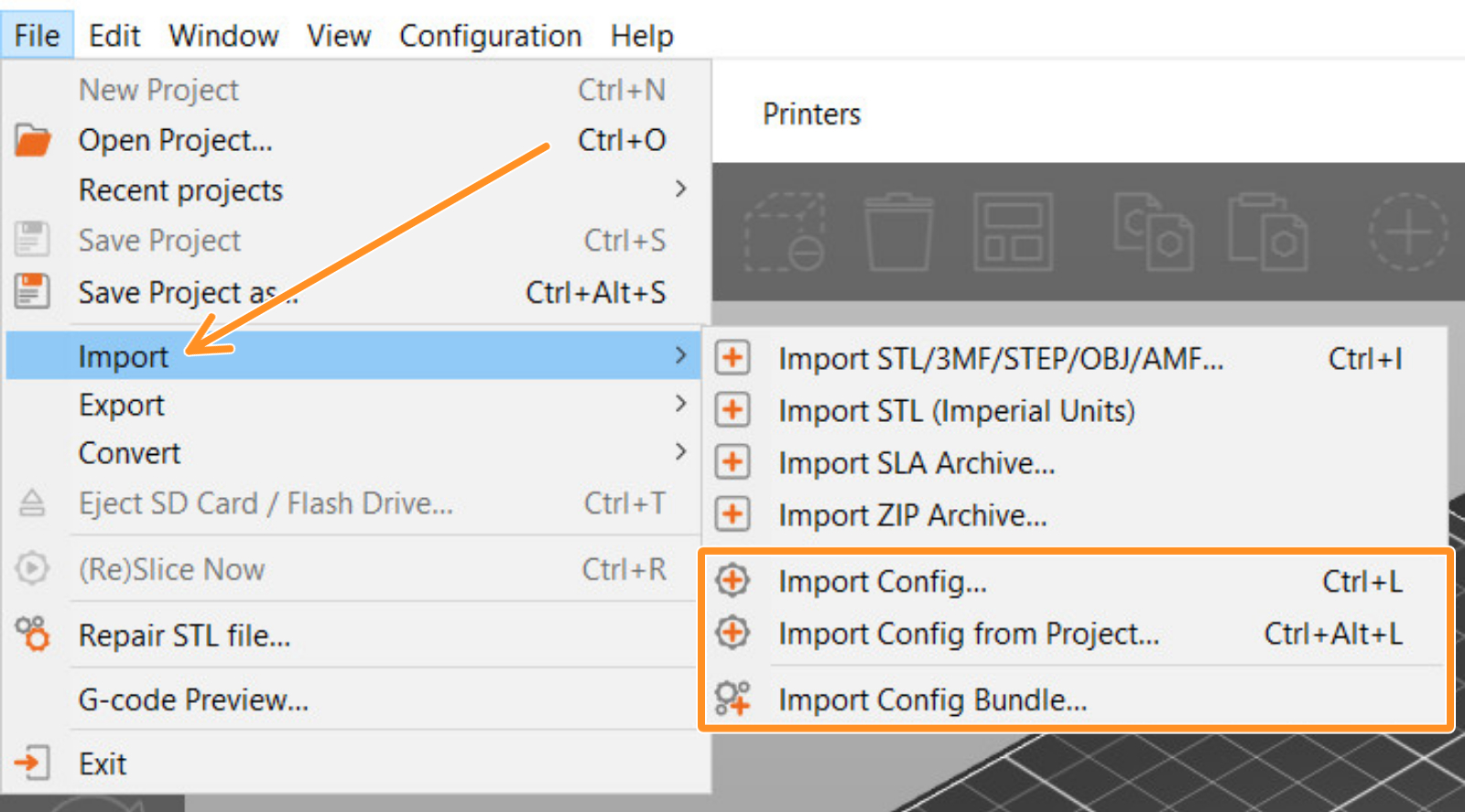
  • Import Config: import a single profile. This function accepts .ini, but also .gcode files. When importing a profile through a G-code, this has to be sliced using PrusaSlicer.
  • Import Config from Project: import a single profile from a project file. This function accepts only projects saved with PrusaSlicer, with .3mf and .amf format.
  • Import Config Bundle: imports all the configuration settings for multiple profiles. This function accepts .ini files.

How to export custom profiles

Navigate to File -> Export. There are three possible options for exporting custom profiles. 
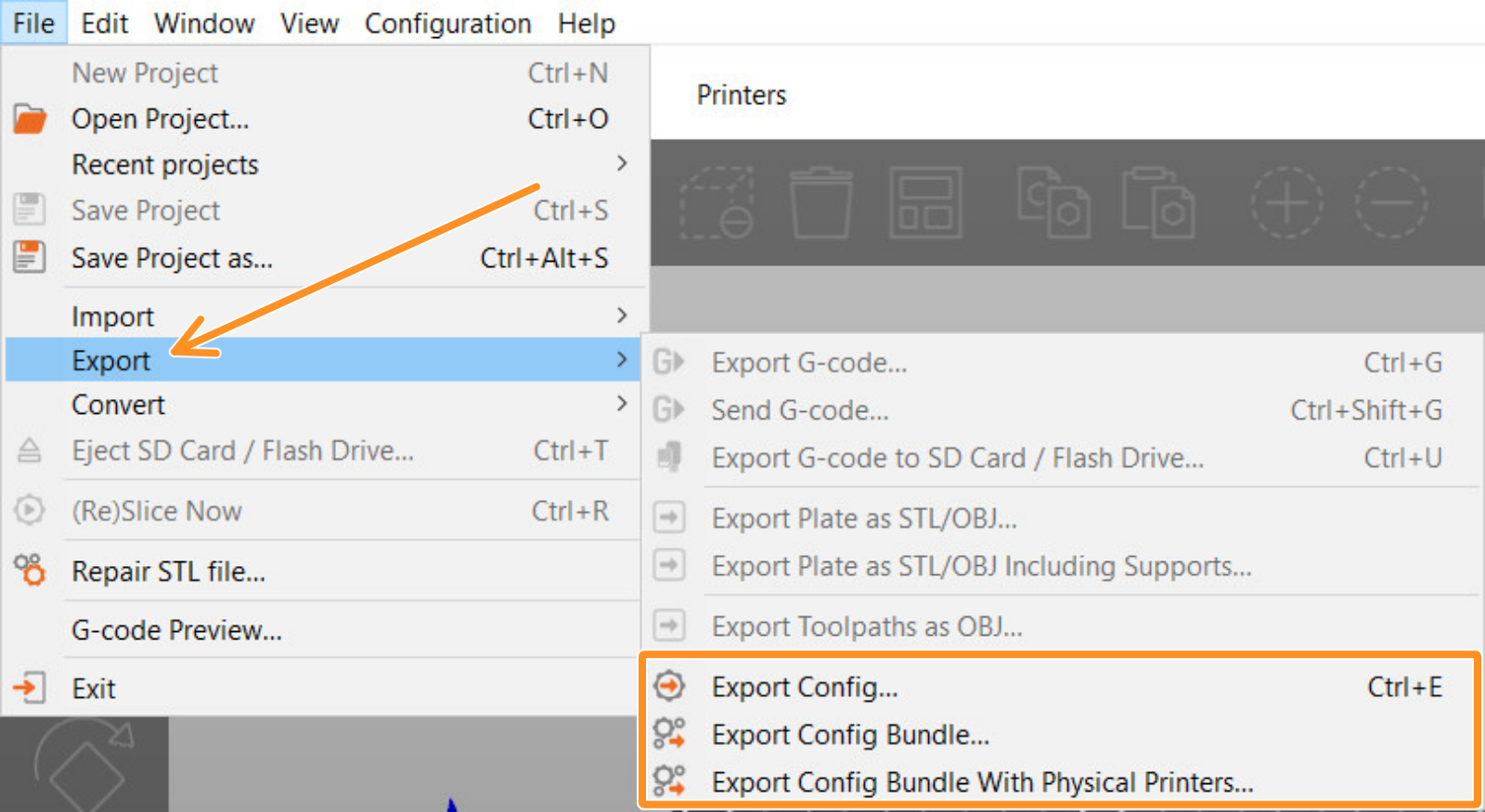
  • Export Config: export current profile.
  • Export Config Bundle: export all custom settings saved in your current PrusaSlicer version.
  • Export Config Bundle with Physical Printers: export a Config Bundle, plus the API key and IP address.
Was this article helpful?
This action is available only to registered users. Please log-in.
 

14 comments

Log in  to post a comment
Kaven Dian
Managing multiple profiles in PrusaSlicer—switching between print, filament, and printer settings—mirrors the way SSO ID streamlines digital access. Instead of juggling separate configurations for every project, an Export Config Bundle acts like a single "master key," unifying your specific hardware settings and even your API key, much like how SSO unifies your login credentials across multiple platforms. This ensures that when you move to a different workstation or share your setup, your entire digital identity—or in this case, your printing environment—remains consistent and secure without re-entering details manually. Visit SS)ID.Pro
Kaven Dian
Just as PrusaSlicer allows you to import and export custom profiles to perfect your 3D prints, Paint 3D offers similar flexibility for your digital canvas. You can save custom brushes, textures, or even entire project setups that act as your own "config bundle," allowing you to recreate a specific artistic style or project template instantly. Whether you are importing a .3mf mo del to modify or exporting your unique creation to share with the community, Paint 3D, like PrusaSlicer, ensures your workflow remains efficient and your custom setups are never lost. Download the Paint 3d Latest version
Reed Bowman
After setup, I couldn't find a way to get back to the setup page that lets you import presets for popular filaments, since there were some I forgot to include. There is nothing obvious, so I struggled through the string of links to the so-called documentation, gave up, and searched support for "download filament presets for prusaslicer." This is the closest thing I could find. It doesn't appear to have anything to do with what I'm searching for, but I also have no idea what it does, based on the article itself.
m234 grty67
Orca Slicer is a powerful and user-friendly slicing software designed to help 3D printing enthusiasts achieve precise, high-quality prints. Built with advanced features and compatibility in mind, it has become a popular choice among hobbyists and professionals alike. This article provides a clear, SEO-friendly guide on Orca Slicer download, its features, system requirements, and usage benefits.
Online Ahmed Ali
If anyone here is also experimenting with OrcaSlicer and wants to import or convert their PrusaSlicer .ini profiles, there’s a simple walkthrough that explains how to do it step-by-step — including how Orca handles .ini versus .json structures and what settings are cross-compatible.

How to Import .INI Profiles to OrcaSlicer

It helped me successfully move filament and printer settings over without errors. Might be useful if you’re trying to bridge configurations between Prusa and Orca instead of recreating profiles manually.